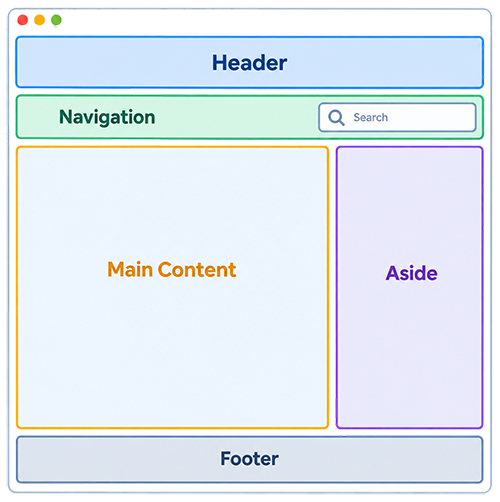
Recently, the DubBot app flagged several landmark issues across a few of my blog posts. And so, naturally, I began to investigate.
As some of you may have already surmised, the culprit turned out to be the template. That was a bit confusing, considering the template had been in use for a couple of years without any apparent issues. 🤔
Sometimes, accessibility has a funny way of reminding you that it’s been working fine isn’t quite the same thing as it’s working correctly.
Regardless, the necessary updates were made, the landmark issues were resolved, and all was well again.
As I dug deeper into landmarks and how they were being handled in the template, I realized it’s a topic I haven’t seen covered very often in articles or blog posts. They’re an important part of a well-structured, accessible webpage, but they don’t always get the attention they deserve.
So, one template update later, I had a new topic for the DubBot blog collection: landmarks.
What Are Landmarks?
A landmark is a clearly defined section of a webpage with a specific purpose, such as navigation or main content. Landmarks help people, especially those using screen readers or keyboard-only navigation, quickly understand the page structure and tab directly to the section they need.
Think of landmarks as a webpage’s table of contents. Instead of reading or listening to everything from top to bottom, screen reader and keyboard navigation users can jump directly to key sections like the main content, navigation, or search bar.
Landmarks are an ARIA concept, but semantic HTML gives you elements that map directly to ARIA landmark roles and create those landmarks automatically, so you don't have to use ARIA.
And with the addition of <search> (added to the HTML spec in 2023), all eight ARIA landmark roles now have corresponding native HTML elements.
Just another good reason to use semantic HTML whenever possible.
|
ARIA landmark role |
Native HTML element |
|---|---|
|
banner |
<header> |
|
complementary |
<aside> |
|
contentinfo |
<footer> |
|
form |
<form> |
|
main |
<main> |
|
navigation |
<nav> |
|
region |
<section> |
|
search |
<search> |
You will find examples for each native HTML element by reading or listening to Landmark Patterns, Examples.
Two Important Caveats
- <header> and <footer> depend on where they’re used.
A <header> can create a banner landmark when it’s used at the top level of a page. But when you place a <header> inside something like <main>, <article>, or <section>, it doesn’t automatically become a banner.
The same idea applies to <footer>. It creates a contentinfo landmark when it’s a child of the <body> element and represents information about the overall page. - A <section> only becomes a region when it has an accessible name, such as one provided by a heading. Simply adding a <section> doesn’t create a region landmark.
When to Use Semantic HTML vs. ARIA Landmarks
Use semantic HTML whenever possible. Elements like <header>, <nav>, <main>, and <footer> provide built-in meaning and accessibility support, making them the best choice when they fit your page structure.
Use ARIA landmarks when HTML doesn’t provide an appropriate semantic element or when you need to identify a more specific custom region.
Rule of Thumb: If a native HTML element gives you the meaning you need, use it. Reach for ARIA when no appropriate HTML equivalent exists.
Why Landmarks Matter
For screen reader and keyboard navigation-only users, landmarks provide shortcuts that let them jump directly to important sections of a page, rather than listening to every line from top to bottom. This is a major usability improvement, especially on content-heavy websites, and it provides equal access to information.
When landmarks are used correctly, users can:
- Move through pages faster.
- Understand page layout more easily.
- Avoid repetitive navigation
- Build confidence while browsing.
Without landmarks, a webpage becomes a wall of content with no clear organization.
Best Practices for Using Landmarks
Use Native HTML
Whenever possible, use native HTML elements such as <main>, <nav>, <header>, <footer>, <aside>, and <search> rather than adding equivalent ARIA roles to generic elements.
For example, use:
<nav>...</nav>
instead of:
<div role="navigation">...</div>
Native HTML provides appropriate accessibility semantics automatically and generally requires less maintenance.
Use Landmarks for Major Regions
Landmarks help users understand and navigate a page's high-level structure. Adding too many can create noise and make navigation harder, not easier.
A good rule of thumb is to keep a page to seven or fewer landmark regions when practical. (Landmarks Pattern)
Repeated Landmarks Need Unique Names
If you have more than one landmark of the same type, give each one an accessible name that tells users what makes it different.
For example:
<nav aria-label="Primary">
...
</nav>
<nav aria-label="Utility">
...
</nav>
Avoid labels such as Primary Navigation because the screen reader may announce the landmark's role separately, resulting in something like Primary Navigation, navigation. The W3C recommends leaving the role out of the label.
Clear, Logical Landmark Structure
Landmarks should reflect the actual structure of the page. In particular, a typical page should have one main landmark, with major supporting regions such as navigation, complementary content, and footer information organized appropriately around it.
For example:
<header>...</header>
<nav>...</nav>
<main>
...
<aside>...</aside>
</main>
<footer>...</footer>
Looking Beyond the Content
The goal isn't simply to have landmarks. It's to create a structure that makes sense when someone moves through the page using landmarks instead of visually scanning it.
Landmarks may not be the flashiest part of web accessibility, but they play an important role in helping people understand and navigate a page. And, as my own experience reminded me, accessibility is an ongoing process. Templates change, standards evolve, and even code that's worked well for years can benefit from another look.
So, the next time you’re testing your site’s accessibility, don’t just look at the content on the page. Look at the structure underneath the page, too. Those landmarks might be doing more work than you think.
Resources
- Landmarks Pattern
- Landmark Regions
- ARIA Landmarks: The Basics
- General Principles for Landmark Regions
A human author creates the DubBlog posts. The AI tools Gemini and ChatGPT are sometimes used to brainstorm subject ideas, generate blog post outlines, and rephrase certain portions of the content. Our marketing team carefully reviews all final drafts for accuracy and authenticity. The opinions and perspectives expressed remain the sole responsibility of the human author.
