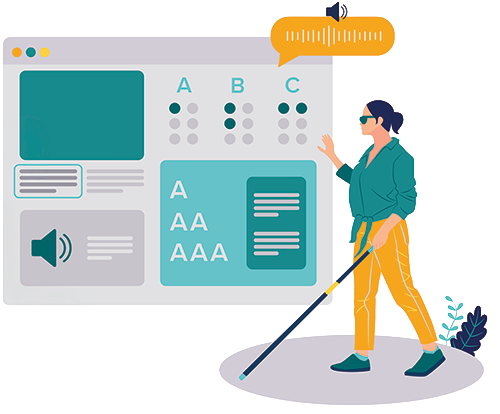
Caveat: This post will discuss accessibility testing with VoiceOver, Apple’s free screen reader. You don’t need to install any software or plugins. You do need to be on a Mac computer or laptop, and for the best results, run VoiceOver in Safari. You may also want to adjust the voice and voice speed.
If you’ve never tested a website with a screen reader, it can feel a little intimidating at first. The good news is you don’t need to be an expert to get started.
Start simple. Spend a few minutes listening to how VoiceOver reads your page and try navigating through headings, links, and buttons. Even this basic first step can reveal a lot about how your site works for people who rely on assistive technology. In many cases, you’ll quickly notice things that automated tools may miss, like unclear link text or confusing navigation.
This post will walk you through some VoiceOver basics, what to expect that might surprise you, and guide you through your first accessibility audit.
What is VoiceOver?
VoiceOver is a built-in screen reader for Mac that reads the content on your screen aloud and lets you navigate a page using keyboard commands. It’s used primarily by people who are blind or have low vision. When you use it to explore your website or app, you experience the page the way a screen reader user would, making it easier to spot navigation problems, missing labels, vague link text, and other barriers that automated tools may miss.
Learn Your Basic Keys
VoiceOver uses a modifier called the VO key. The VO key is a combination of the Control + Option keys.
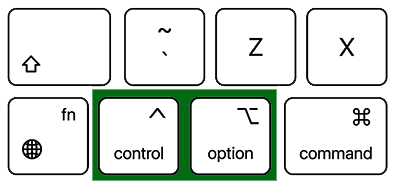
It’s used with other keys to control VoiceOver and navigate what’s on your screen.
Commands You Need to Get Started
- Command + F5 = VoiceOver on / off
- VO + A = Begin Reading
- Control = VoiceOver pause / resume
- VO + Command + L = Next Link
- VO + Space = Activate (click)
- Tab = Move between interactive elements
- VO + Command + H = Move through headings
Common Beginner Checks
Even a quick pass for each of these elements can uncover major accessibility barriers.
- Headings out of order or missing
- Links without descriptive text.
- Buttons that are improperly labeled or not labeled at all.
Don’t Be Surprised If…
So you don't get caught off guard, there may be moments when you don't hear what you expect to hear based on what you see. These moments reinforce the fact that accessibility isn't about making things look pretty, but about making them structurally and semantically usable for everyone.
Headings That Confuse
As you skim through the headings using VO + Command + H, you may expect to hear VoiceOver read the headings in the order in which you see them. But VoiceOver may announce them in a confusing and out-of-order way. What seemed like a clean, well-organized page suddenly sounds chaotic. Proper heading structure, along with descriptive headings, provides a logical guide for everyone as they navigate your content.
Links That Leave You Guessing
Using VO + Command + L or the Tab key to move from one link to the next, you may notice non-descriptive link text like Click here or Read more, which doesn’t make any sense when read out of context. Screen reader users often scan a webpage using a feature called the Rotor in VoiceOver. The Rotor lets users jump to a list of specific elements, such as links or headings, and move through the page by navigating that list. Hearing a list of links titled Click Here doesn’t tell the user where those links go, reinforcing the need for each link to have a clear, descriptive label.
Buttons that disappear
Finally, you may encounter a button that looks like a clear, clickable element on the screen, but VoiceOver ignores it. If a button doesn’t have a proper accessible label or if the label doesn’t clearly describe what the button does, VoiceOver users won’t know it’s interactive. That means they could miss important actions or information entirely.
Ready, Set, Go
Let’s walk through a very simple accessibility test.
Using Safari, start with a simple blog post or landing page of your choice. Once the page is open,
- press Command + F5 to turn VoiceOver on
- then press VO + A to begin reading.
Take a Minute and Listen
Once active, listen to how VoiceOver reads the page and compare it to what you see on the screen. Pay close attention to how headings, links, buttons, and other interactive elements are announced. It's a great way to familiarize yourself with how VoiceOver navigates a page and announces the elements it encounters.
Pro Tip: Keep a pad and pen nearby. Make note of what’s easy to follow and interact with and where you get lost. Doing that, you learn what real users might experience.
Note: By default, you will be testing the keyboard accessibility of each of these elements. Make sure to track and note any discrepancies.
Headings
Use VO + Command + H to jump from heading to heading. Are they in logical order? Are the headings clear and descriptive? Do they match the content they introduce?
Understanding SC 2.4.6: Headings and Labels (Level AA)
Links
Using VO + Command + L, tab through all the links. Are they clearly labeled? Does the label text make sense out of context? If the link is clearly labeled and you want to take it a step further, use VO + Space to click the link and confirm it goes where the label says it will.
Understanding SC 2.4.4: Link Purpose (In Context) (Level A)
Buttons
Using the Tab key, tab to every button on the page. Does the button have an accessible label that clearly describes its function?
Understanding SC 3.3.2: Labels or Instructions (Level A)
Understanding SC 1.1.1: Non-text Content (Level A)
Tips for Efficient Testing
- Adjust VoiceOver’s speaking rate and voice to something that you will be comfortable with.
- Take notes as you navigate. This helps turn observations into actionable remediation.
- Practice on multiple pages and apps to get a sense of patterns and pitfalls.
I hope this basic overview of VoiceOver, along with the simple test activities, helps you feel more comfortable getting started with screen readers. You don’t need to master every keyboard command or understand every nuance on day one. Learning the basics takes practice, so be patient.
The goal is not perfection, it’s awareness. The more often you take a moment to engage with your content the way a screen reader user does, the easier it becomes to spot barriers and build user experiences that work for everyone.
Resources
- Testing with Screen Readers
- VoiceOver Keyboard Shortcuts on a Mac
- How To Use VoiceOver on Mac (YouTube)
- Get started with VoiceOver on Mac
- Using VoiceOver to Evaluate Web Accessibility
A human author creates the DubBlog posts. The AI tools Gemini and ChatGPT are sometimes used to brainstorm subject ideas, generate blog post outlines, and rephrase specific sections of content. Our marketing team carefully reviews all final drafts for accuracy and authenticity. The opinions and perspectives expressed remain the sole responsibility of the human author.
